> ## Documentation Index
> Fetch the complete documentation index at: https://docs-staging-chore-rate-limits-autoupdate-0.mintlify.site/llms.txt
> Use this file to discover all available pages before exploring further.

> Learn how to configure an update policy form using Forms for Actions for users to review and accept new terms of service or consent updates.

# Use Cases: Configure an update policy form using Forms

<Card title="Before you start">
  1. Create a [Machine-to-Machine Application](/docs/get-started/auth0-overview/create-applications/machine-to-machine-apps) with the following scopes enabled:

  * `read:users`
  * `update:users`
  * `create:users`
  * `read:users_app_metadata`
  * `update:users_app_metadata`
  * `create:users_app_metadata`

  2. Add a [Vault connection](/docs/customize/forms/vault) using the M2M application credentials.
</Card>

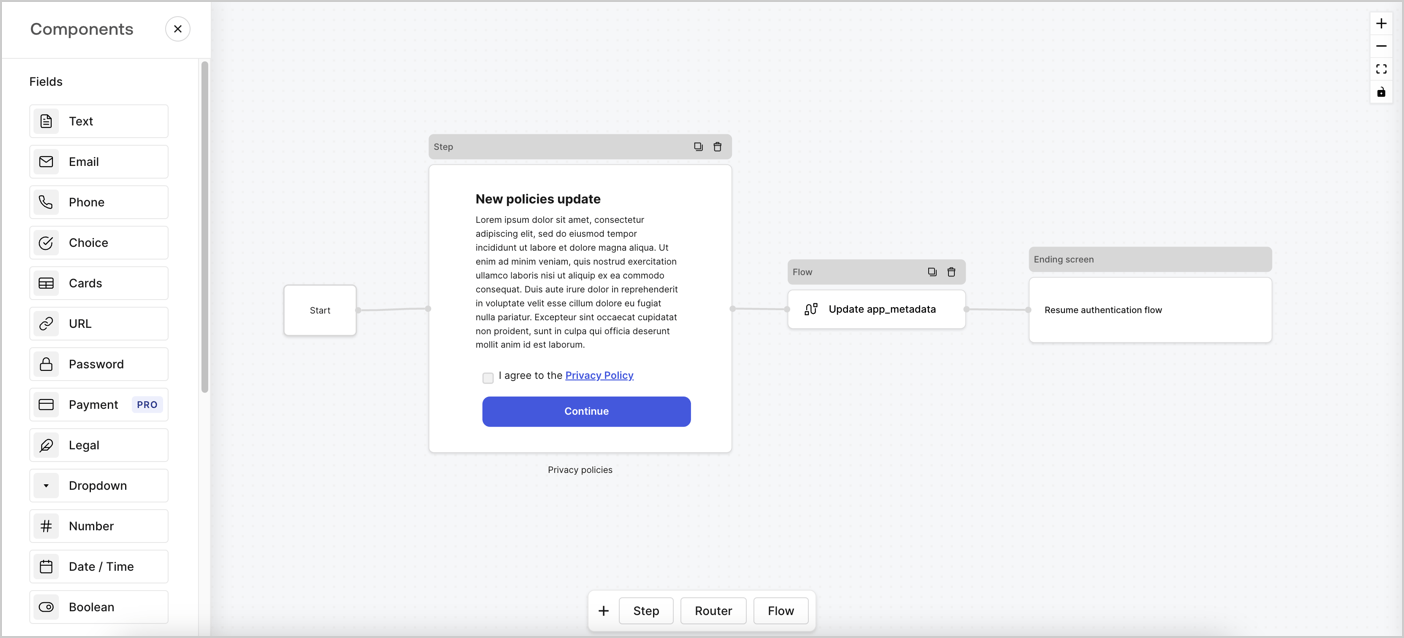
Forms for Actions allows you to create custom privacy policies flows and store the consent under the `app_metadata` object.
<Frame>
  <img src="https://mintcdn.com/docs-staging-chore-rate-limits-autoupdate-0/9ET4GWN2sVah-rVR/docs/images/cdy7uua7fh8z/6i68dMvHDTijfRmSgN1x8Q/ad900e7d4c0fb34645921435472b8684/privavy-policy-form.png?fit=max&auto=format&n=9ET4GWN2sVah-rVR&q=85&s=ce18f4a51fbf9df48baa5ae558966221" alt="Dashboard > Actions > Forms > Privacy policy use case" data-og-width="1404" width="1404" data-og-height="638" height="638" data-path="docs/images/cdy7uua7fh8z/6i68dMvHDTijfRmSgN1x8Q/ad900e7d4c0fb34645921435472b8684/privavy-policy-form.png" data-optimize="true" data-opv="3" srcset="https://mintcdn.com/docs-staging-chore-rate-limits-autoupdate-0/9ET4GWN2sVah-rVR/docs/images/cdy7uua7fh8z/6i68dMvHDTijfRmSgN1x8Q/ad900e7d4c0fb34645921435472b8684/privavy-policy-form.png?w=280&fit=max&auto=format&n=9ET4GWN2sVah-rVR&q=85&s=1b2a1bebebde11d72c81796d47f36214 280w, https://mintcdn.com/docs-staging-chore-rate-limits-autoupdate-0/9ET4GWN2sVah-rVR/docs/images/cdy7uua7fh8z/6i68dMvHDTijfRmSgN1x8Q/ad900e7d4c0fb34645921435472b8684/privavy-policy-form.png?w=560&fit=max&auto=format&n=9ET4GWN2sVah-rVR&q=85&s=0e357b9bbabdec569cc43c6f17fa626a 560w, https://mintcdn.com/docs-staging-chore-rate-limits-autoupdate-0/9ET4GWN2sVah-rVR/docs/images/cdy7uua7fh8z/6i68dMvHDTijfRmSgN1x8Q/ad900e7d4c0fb34645921435472b8684/privavy-policy-form.png?w=840&fit=max&auto=format&n=9ET4GWN2sVah-rVR&q=85&s=01040978e8150cb35e8cbcc39ff264ca 840w, https://mintcdn.com/docs-staging-chore-rate-limits-autoupdate-0/9ET4GWN2sVah-rVR/docs/images/cdy7uua7fh8z/6i68dMvHDTijfRmSgN1x8Q/ad900e7d4c0fb34645921435472b8684/privavy-policy-form.png?w=1100&fit=max&auto=format&n=9ET4GWN2sVah-rVR&q=85&s=63a17b063346165b1ccc5f49bf02848c 1100w, https://mintcdn.com/docs-staging-chore-rate-limits-autoupdate-0/9ET4GWN2sVah-rVR/docs/images/cdy7uua7fh8z/6i68dMvHDTijfRmSgN1x8Q/ad900e7d4c0fb34645921435472b8684/privavy-policy-form.png?w=1650&fit=max&auto=format&n=9ET4GWN2sVah-rVR&q=85&s=91b87b86b2a85fcb68b4564ba2d136d6 1650w, https://mintcdn.com/docs-staging-chore-rate-limits-autoupdate-0/9ET4GWN2sVah-rVR/docs/images/cdy7uua7fh8z/6i68dMvHDTijfRmSgN1x8Q/ad900e7d4c0fb34645921435472b8684/privavy-policy-form.png?w=2500&fit=max&auto=format&n=9ET4GWN2sVah-rVR&q=85&s=721178515f10b04cf7ed315c848a635b 2500w" />
</Frame>

The sections below outline how you can create an Update Policy form using nodes and flows, along with steps for adding your form to a [Post Login](/docs/customize/actions/explore-triggers/signup-and-login-triggers/login-trigger) Action.

## Create a form from scratch

Follow these steps to create a form to gather information:

1. Open the Form editor by selecting **Auth0 Dashboard > Actions > Forms.**
2. Select **Create Form** > **Start from scratch**.

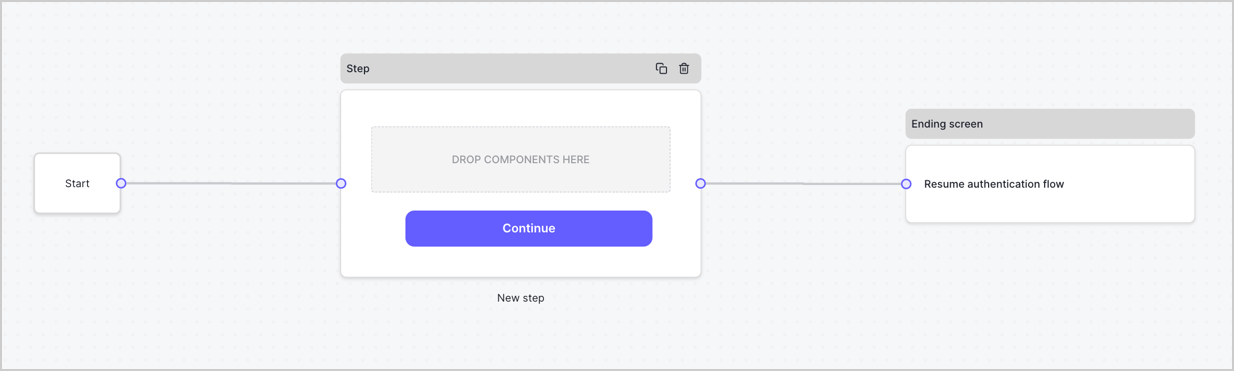
By default, a new form contains a Start node, a Step node, and an Ending screen node.
<Frame>
  <img src="https://mintcdn.com/docs-staging-chore-rate-limits-autoupdate-0/J4jnk8JbEVhByDnI/docs/images/cdy7uua7fh8z/2TZ9jSjgEcARFpULI6hz4R/a4319a1bd482f2ee5cc23100fdb2f42c/New-form-Forms-for-action-use-case.png?fit=max&auto=format&n=J4jnk8JbEVhByDnI&q=85&s=f072557ce27ed0005698d956857d6de0" alt="Dashboard > Forms > Use Cases > Form" data-og-width="1234" width="1234" data-og-height="371" height="371" data-path="docs/images/cdy7uua7fh8z/2TZ9jSjgEcARFpULI6hz4R/a4319a1bd482f2ee5cc23100fdb2f42c/New-form-Forms-for-action-use-case.png" data-optimize="true" data-opv="3" srcset="https://mintcdn.com/docs-staging-chore-rate-limits-autoupdate-0/J4jnk8JbEVhByDnI/docs/images/cdy7uua7fh8z/2TZ9jSjgEcARFpULI6hz4R/a4319a1bd482f2ee5cc23100fdb2f42c/New-form-Forms-for-action-use-case.png?w=280&fit=max&auto=format&n=J4jnk8JbEVhByDnI&q=85&s=fa38027f97c54d8b25f392601cb38510 280w, https://mintcdn.com/docs-staging-chore-rate-limits-autoupdate-0/J4jnk8JbEVhByDnI/docs/images/cdy7uua7fh8z/2TZ9jSjgEcARFpULI6hz4R/a4319a1bd482f2ee5cc23100fdb2f42c/New-form-Forms-for-action-use-case.png?w=560&fit=max&auto=format&n=J4jnk8JbEVhByDnI&q=85&s=ab1d75c7cefdcdd7a27f14152212b970 560w, https://mintcdn.com/docs-staging-chore-rate-limits-autoupdate-0/J4jnk8JbEVhByDnI/docs/images/cdy7uua7fh8z/2TZ9jSjgEcARFpULI6hz4R/a4319a1bd482f2ee5cc23100fdb2f42c/New-form-Forms-for-action-use-case.png?w=840&fit=max&auto=format&n=J4jnk8JbEVhByDnI&q=85&s=afbdbcd34e5e56c990a749ae6e1922e0 840w, https://mintcdn.com/docs-staging-chore-rate-limits-autoupdate-0/J4jnk8JbEVhByDnI/docs/images/cdy7uua7fh8z/2TZ9jSjgEcARFpULI6hz4R/a4319a1bd482f2ee5cc23100fdb2f42c/New-form-Forms-for-action-use-case.png?w=1100&fit=max&auto=format&n=J4jnk8JbEVhByDnI&q=85&s=dd95f5ca37c1d87ce550136f3ed9e4d7 1100w, https://mintcdn.com/docs-staging-chore-rate-limits-autoupdate-0/J4jnk8JbEVhByDnI/docs/images/cdy7uua7fh8z/2TZ9jSjgEcARFpULI6hz4R/a4319a1bd482f2ee5cc23100fdb2f42c/New-form-Forms-for-action-use-case.png?w=1650&fit=max&auto=format&n=J4jnk8JbEVhByDnI&q=85&s=9547863925889f13a63b2b46c59fbf62 1650w, https://mintcdn.com/docs-staging-chore-rate-limits-autoupdate-0/J4jnk8JbEVhByDnI/docs/images/cdy7uua7fh8z/2TZ9jSjgEcARFpULI6hz4R/a4319a1bd482f2ee5cc23100fdb2f42c/New-form-Forms-for-action-use-case.png?w=2500&fit=max&auto=format&n=J4jnk8JbEVhByDnI&q=85&s=2d2d9162a5b2eb6255e948d7fdb934c2 2500w" />
</Frame>

### Configure the Step node

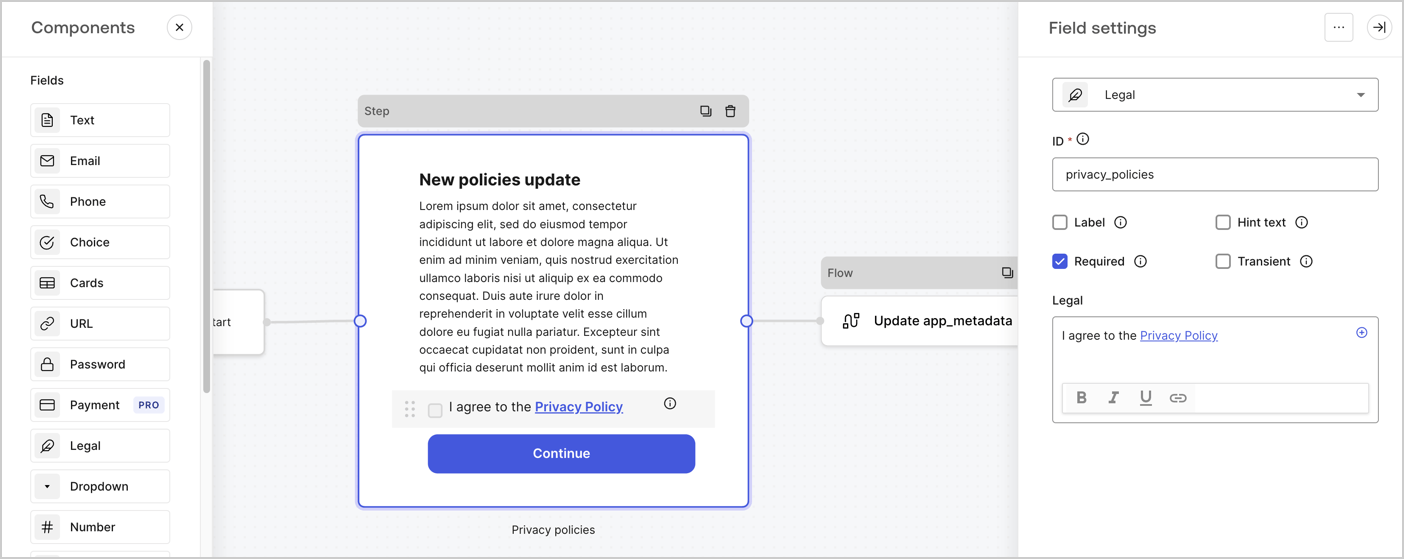
The Step node is the graphical interface visible to users. Add [Fields](/docs/customize/forms/nodes-and-components) to the Step node to collect the new agreement acceptance value by following these steps:

1. Drag a **Rich text** field from the **Components menu** into the **Step** node.

   * **Rich text**: Enter a description of your privacy policies updates.
   * Select **Save**.
2. Drag a **Legal** field into the **Step** node.

   * **ID**: Enter `privacy_policies`.
   * **Required**: Enable the checkbox.
   * **Legal**: Enter `I agree to the Privacy Policy`.
   * Select **Save**.
3. Select **Publish** to save.
<Frame>
  <img src="https://mintcdn.com/docs-staging-chore-rate-limits-autoupdate-0/WMGouAq-fUNBm_FJ/docs/images/cdy7uua7fh8z/59zFFjQjAnjogkc2QGIqqJ/0ad66b1b636544122aa4e65968b76c2c/privacy-policy-step-node.png?fit=max&auto=format&n=WMGouAq-fUNBm_FJ&q=85&s=27843bed4b0bf059d62ef57024d9316b" alt="Dashboard > Actions > Forms > Use case privacy policy step node" data-og-width="1404" width="1404" data-og-height="559" height="559" data-path="docs/images/cdy7uua7fh8z/59zFFjQjAnjogkc2QGIqqJ/0ad66b1b636544122aa4e65968b76c2c/privacy-policy-step-node.png" data-optimize="true" data-opv="3" srcset="https://mintcdn.com/docs-staging-chore-rate-limits-autoupdate-0/WMGouAq-fUNBm_FJ/docs/images/cdy7uua7fh8z/59zFFjQjAnjogkc2QGIqqJ/0ad66b1b636544122aa4e65968b76c2c/privacy-policy-step-node.png?w=280&fit=max&auto=format&n=WMGouAq-fUNBm_FJ&q=85&s=48f409c7c3f8e493c5915ea31c04ea1a 280w, https://mintcdn.com/docs-staging-chore-rate-limits-autoupdate-0/WMGouAq-fUNBm_FJ/docs/images/cdy7uua7fh8z/59zFFjQjAnjogkc2QGIqqJ/0ad66b1b636544122aa4e65968b76c2c/privacy-policy-step-node.png?w=560&fit=max&auto=format&n=WMGouAq-fUNBm_FJ&q=85&s=c0cccfaacd195dcb41c52a3b898ebadf 560w, https://mintcdn.com/docs-staging-chore-rate-limits-autoupdate-0/WMGouAq-fUNBm_FJ/docs/images/cdy7uua7fh8z/59zFFjQjAnjogkc2QGIqqJ/0ad66b1b636544122aa4e65968b76c2c/privacy-policy-step-node.png?w=840&fit=max&auto=format&n=WMGouAq-fUNBm_FJ&q=85&s=c10e6bcd40ca288ac43fd9f35a4e1a00 840w, https://mintcdn.com/docs-staging-chore-rate-limits-autoupdate-0/WMGouAq-fUNBm_FJ/docs/images/cdy7uua7fh8z/59zFFjQjAnjogkc2QGIqqJ/0ad66b1b636544122aa4e65968b76c2c/privacy-policy-step-node.png?w=1100&fit=max&auto=format&n=WMGouAq-fUNBm_FJ&q=85&s=a5be6d4fe3665fda6538c297aaf78eb6 1100w, https://mintcdn.com/docs-staging-chore-rate-limits-autoupdate-0/WMGouAq-fUNBm_FJ/docs/images/cdy7uua7fh8z/59zFFjQjAnjogkc2QGIqqJ/0ad66b1b636544122aa4e65968b76c2c/privacy-policy-step-node.png?w=1650&fit=max&auto=format&n=WMGouAq-fUNBm_FJ&q=85&s=31c9253c347b2f743b5d86cbbd5b7d2e 1650w, https://mintcdn.com/docs-staging-chore-rate-limits-autoupdate-0/WMGouAq-fUNBm_FJ/docs/images/cdy7uua7fh8z/59zFFjQjAnjogkc2QGIqqJ/0ad66b1b636544122aa4e65968b76c2c/privacy-policy-step-node.png?w=2500&fit=max&auto=format&n=WMGouAq-fUNBm_FJ&q=85&s=54370713d315076028a6a82fbb09db60 2500w" />
</Frame>

### Configure the Flow node

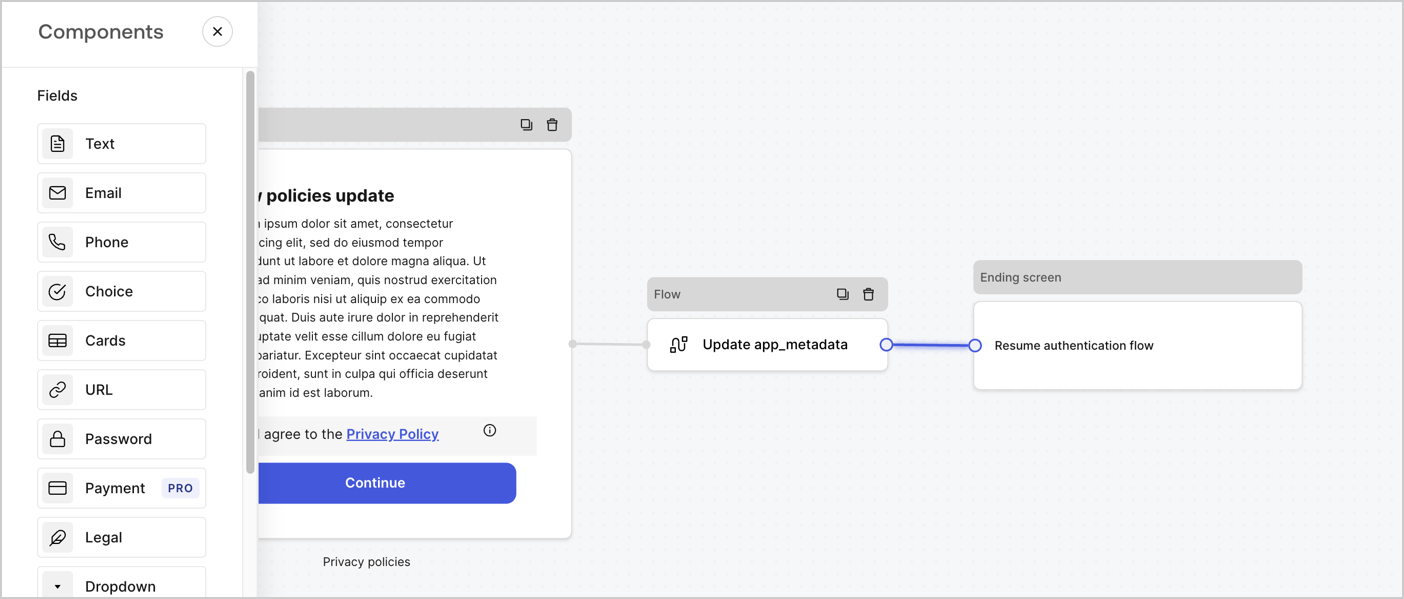
Add a **Flow** node after the **Step** node to update the `app_metadata` and resume the authentication flow by following these steps:

1. Select **Flow** from the bottom of the Form editor.
2. Remove the existing link between the **Step** and **Ending Screen** nodes.
3. Select the new **Flow** > **Click to add a flow** > **Create a new flow.**

   * Enter `Update app_metadata` in the **Name** field.
   * Select **Create**.
   * Select **Save**.
4. Link the **Flow** node to the **Step** and **Ending Screen** nodes as pictured below.
5. Select **Publish** to save.
<Frame>
  <img src="https://mintcdn.com/docs-staging-chore-rate-limits-autoupdate-0/9ET4GWN2sVah-rVR/docs/images/cdy7uua7fh8z/6YIkzm7SrpM9LW76AXuRzh/353c518fe82bbaa440836da1d83596d6/link-policies.png?fit=max&auto=format&n=9ET4GWN2sVah-rVR&q=85&s=b3a33842940b295f70f289104f705c69" alt="Dashboard > Actions > Forms > Form" data-og-width="1404" width="1404" data-og-height="599" height="599" data-path="docs/images/cdy7uua7fh8z/6YIkzm7SrpM9LW76AXuRzh/353c518fe82bbaa440836da1d83596d6/link-policies.png" data-optimize="true" data-opv="3" srcset="https://mintcdn.com/docs-staging-chore-rate-limits-autoupdate-0/9ET4GWN2sVah-rVR/docs/images/cdy7uua7fh8z/6YIkzm7SrpM9LW76AXuRzh/353c518fe82bbaa440836da1d83596d6/link-policies.png?w=280&fit=max&auto=format&n=9ET4GWN2sVah-rVR&q=85&s=8c3fe0a9e543835bde93b1ff21982458 280w, https://mintcdn.com/docs-staging-chore-rate-limits-autoupdate-0/9ET4GWN2sVah-rVR/docs/images/cdy7uua7fh8z/6YIkzm7SrpM9LW76AXuRzh/353c518fe82bbaa440836da1d83596d6/link-policies.png?w=560&fit=max&auto=format&n=9ET4GWN2sVah-rVR&q=85&s=a87c6b2be4584cbe3b1d38d67eb27142 560w, https://mintcdn.com/docs-staging-chore-rate-limits-autoupdate-0/9ET4GWN2sVah-rVR/docs/images/cdy7uua7fh8z/6YIkzm7SrpM9LW76AXuRzh/353c518fe82bbaa440836da1d83596d6/link-policies.png?w=840&fit=max&auto=format&n=9ET4GWN2sVah-rVR&q=85&s=602e55c238bcce67ecdae7900eb1336b 840w, https://mintcdn.com/docs-staging-chore-rate-limits-autoupdate-0/9ET4GWN2sVah-rVR/docs/images/cdy7uua7fh8z/6YIkzm7SrpM9LW76AXuRzh/353c518fe82bbaa440836da1d83596d6/link-policies.png?w=1100&fit=max&auto=format&n=9ET4GWN2sVah-rVR&q=85&s=cc6705e41c7f9e0a5756a4db1c363684 1100w, https://mintcdn.com/docs-staging-chore-rate-limits-autoupdate-0/9ET4GWN2sVah-rVR/docs/images/cdy7uua7fh8z/6YIkzm7SrpM9LW76AXuRzh/353c518fe82bbaa440836da1d83596d6/link-policies.png?w=1650&fit=max&auto=format&n=9ET4GWN2sVah-rVR&q=85&s=0de2fb244668625c08965b49762160a1 1650w, https://mintcdn.com/docs-staging-chore-rate-limits-autoupdate-0/9ET4GWN2sVah-rVR/docs/images/cdy7uua7fh8z/6YIkzm7SrpM9LW76AXuRzh/353c518fe82bbaa440836da1d83596d6/link-policies.png?w=2500&fit=max&auto=format&n=9ET4GWN2sVah-rVR&q=85&s=3449e6c68371b5670e9b474ad97740f8 2500w" />
</Frame>

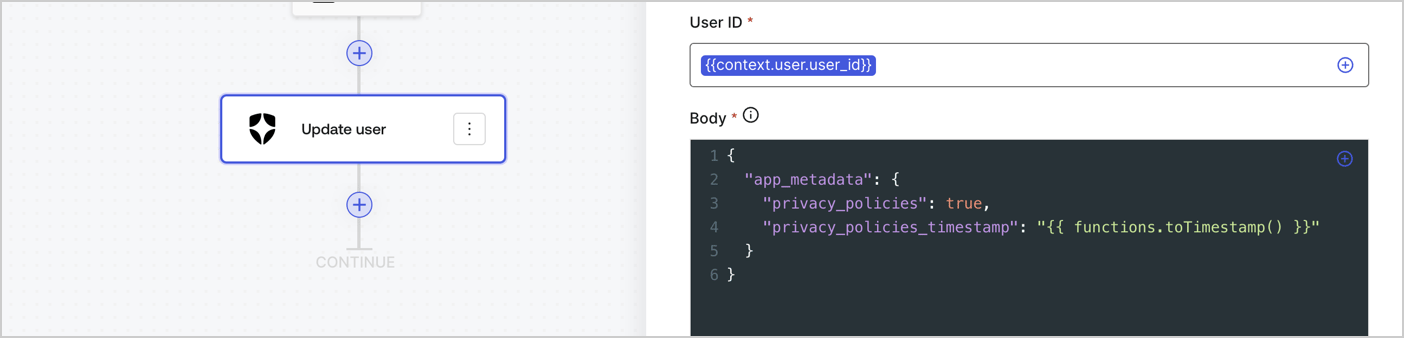
Add an Auth0 Update user action to the flow by following these steps:

1. Select the **Flow** **Update app\_metadata** > **Edit flow** to open the Flow editor in a new tab.
2. Below the StartAction, select the **+** icon to add an **Update user** action. Complete the fields below, then select **Save** to continue.

   * **Connection**: Select from the dropdown the Vault connection to your M2M application.

   * **User ID**: Enter `{{context.user.user_id}}`.

   * **Body**: Copy and paste the following code to update the app\_metadata with the privacy\_policies and privacy\_policies\_timestamp properties.

     ```text lines theme={null}
     {
       "app_metadata": {
         "privacy_policies": true,
         "privacy_policies_timestamp": "{{ functions.toTimestamp() }}"
       }
     }
     ```

   * Select **Save**.
3. Select **Publish** to save.
<Frame>
  <img src="https://mintcdn.com/docs-staging-chore-rate-limits-autoupdate-0/czmggnCg_qMMDzqm/docs/images/cdy7uua7fh8z/CvMNIwWrOUwaFW4X3G28p/1fb70ae57a20749d9ffaaba8dc0b7e26/update-user-privacy.png?fit=max&auto=format&n=czmggnCg_qMMDzqm&q=85&s=9c5653ea76e6dcca261fb552f8ea1971" alt="Dashboard > Actions > Forms > User case privacy policy code" data-og-width="1404" width="1404" data-og-height="338" height="338" data-path="docs/images/cdy7uua7fh8z/CvMNIwWrOUwaFW4X3G28p/1fb70ae57a20749d9ffaaba8dc0b7e26/update-user-privacy.png" data-optimize="true" data-opv="3" srcset="https://mintcdn.com/docs-staging-chore-rate-limits-autoupdate-0/czmggnCg_qMMDzqm/docs/images/cdy7uua7fh8z/CvMNIwWrOUwaFW4X3G28p/1fb70ae57a20749d9ffaaba8dc0b7e26/update-user-privacy.png?w=280&fit=max&auto=format&n=czmggnCg_qMMDzqm&q=85&s=f94f70efa403c9b8c0cd6a4b86d0bb71 280w, https://mintcdn.com/docs-staging-chore-rate-limits-autoupdate-0/czmggnCg_qMMDzqm/docs/images/cdy7uua7fh8z/CvMNIwWrOUwaFW4X3G28p/1fb70ae57a20749d9ffaaba8dc0b7e26/update-user-privacy.png?w=560&fit=max&auto=format&n=czmggnCg_qMMDzqm&q=85&s=406c429926e0d73ef67d3d2901c1ada0 560w, https://mintcdn.com/docs-staging-chore-rate-limits-autoupdate-0/czmggnCg_qMMDzqm/docs/images/cdy7uua7fh8z/CvMNIwWrOUwaFW4X3G28p/1fb70ae57a20749d9ffaaba8dc0b7e26/update-user-privacy.png?w=840&fit=max&auto=format&n=czmggnCg_qMMDzqm&q=85&s=bb70fbab0b3f0333169f8173f9c681d3 840w, https://mintcdn.com/docs-staging-chore-rate-limits-autoupdate-0/czmggnCg_qMMDzqm/docs/images/cdy7uua7fh8z/CvMNIwWrOUwaFW4X3G28p/1fb70ae57a20749d9ffaaba8dc0b7e26/update-user-privacy.png?w=1100&fit=max&auto=format&n=czmggnCg_qMMDzqm&q=85&s=f09b06ed5490e0604f3086b7b4da8560 1100w, https://mintcdn.com/docs-staging-chore-rate-limits-autoupdate-0/czmggnCg_qMMDzqm/docs/images/cdy7uua7fh8z/CvMNIwWrOUwaFW4X3G28p/1fb70ae57a20749d9ffaaba8dc0b7e26/update-user-privacy.png?w=1650&fit=max&auto=format&n=czmggnCg_qMMDzqm&q=85&s=39fbec732d133510bdc8f93e6e518a79 1650w, https://mintcdn.com/docs-staging-chore-rate-limits-autoupdate-0/czmggnCg_qMMDzqm/docs/images/cdy7uua7fh8z/CvMNIwWrOUwaFW4X3G28p/1fb70ae57a20749d9ffaaba8dc0b7e26/update-user-privacy.png?w=2500&fit=max&auto=format&n=czmggnCg_qMMDzqm&q=85&s=3966a5a62f3a29e9cc661d856074ab0d 2500w" />
</Frame>

<Callout icon="file-lines" color="#0EA5E9" iconType="regular">
  The flow **Update app\_metadata** adds a `privacy_policies true` value to the app`_metadata` object and also generates a timestamp with a [helper function.](/docs/customize/forms/variables)
</Callout>

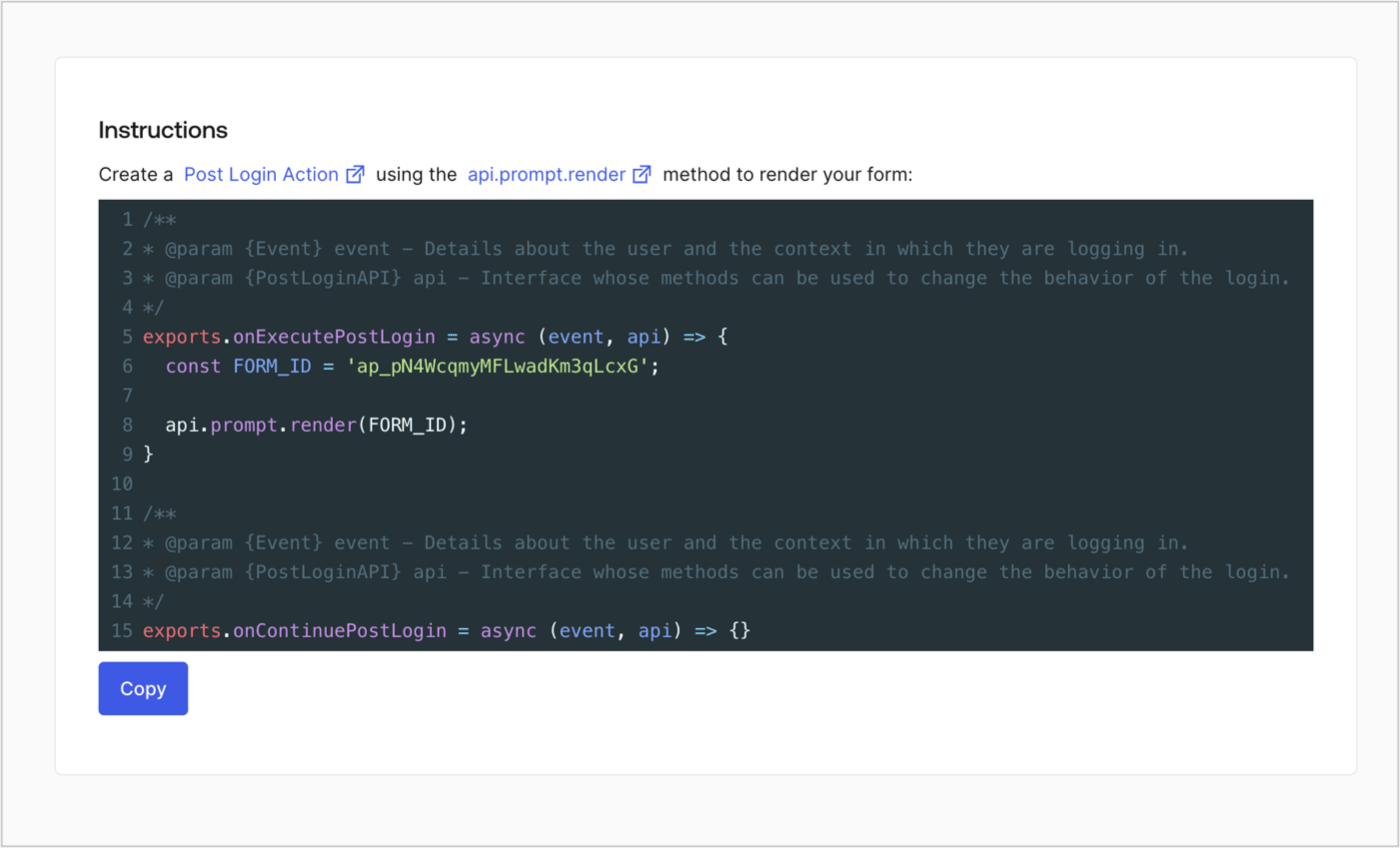
## Retrieve the form render code

Retrieve your form render code to visually render the form with a custom Post Login Action by following these steps:

* From the Form editor, select **`<> Render`**.
* Select **Copy**.
<Frame>
  <img src="https://mintcdn.com/docs-staging-chore-rate-limits-autoupdate-0/uIK4WHBmDj93FeuL/docs/images/cdy7uua7fh8z/2EIUzc539sq9lwoTKbjoJv/496a864c0fc44a782c9cadca119dbfb0/embed.png?fit=max&auto=format&n=uIK4WHBmDj93FeuL&q=85&s=68f89adf2d90528f2f5e2ead72791150" alt="Dashboard > Actions > Forms > Form > Embed" data-og-width="1400" width="1400" data-og-height="848" height="848" data-path="docs/images/cdy7uua7fh8z/2EIUzc539sq9lwoTKbjoJv/496a864c0fc44a782c9cadca119dbfb0/embed.png" data-optimize="true" data-opv="3" srcset="https://mintcdn.com/docs-staging-chore-rate-limits-autoupdate-0/uIK4WHBmDj93FeuL/docs/images/cdy7uua7fh8z/2EIUzc539sq9lwoTKbjoJv/496a864c0fc44a782c9cadca119dbfb0/embed.png?w=280&fit=max&auto=format&n=uIK4WHBmDj93FeuL&q=85&s=6fbd99837fe3caa32b35e68c5582a77c 280w, https://mintcdn.com/docs-staging-chore-rate-limits-autoupdate-0/uIK4WHBmDj93FeuL/docs/images/cdy7uua7fh8z/2EIUzc539sq9lwoTKbjoJv/496a864c0fc44a782c9cadca119dbfb0/embed.png?w=560&fit=max&auto=format&n=uIK4WHBmDj93FeuL&q=85&s=71104bfd7db96c3afa2db6e624127bef 560w, https://mintcdn.com/docs-staging-chore-rate-limits-autoupdate-0/uIK4WHBmDj93FeuL/docs/images/cdy7uua7fh8z/2EIUzc539sq9lwoTKbjoJv/496a864c0fc44a782c9cadca119dbfb0/embed.png?w=840&fit=max&auto=format&n=uIK4WHBmDj93FeuL&q=85&s=095d741fabec2b1aa02d4055e3269a6b 840w, https://mintcdn.com/docs-staging-chore-rate-limits-autoupdate-0/uIK4WHBmDj93FeuL/docs/images/cdy7uua7fh8z/2EIUzc539sq9lwoTKbjoJv/496a864c0fc44a782c9cadca119dbfb0/embed.png?w=1100&fit=max&auto=format&n=uIK4WHBmDj93FeuL&q=85&s=aa25224006800941e306e7320a5492ba 1100w, https://mintcdn.com/docs-staging-chore-rate-limits-autoupdate-0/uIK4WHBmDj93FeuL/docs/images/cdy7uua7fh8z/2EIUzc539sq9lwoTKbjoJv/496a864c0fc44a782c9cadca119dbfb0/embed.png?w=1650&fit=max&auto=format&n=uIK4WHBmDj93FeuL&q=85&s=cfa46260545ca33c705efd4c3e78eaa0 1650w, https://mintcdn.com/docs-staging-chore-rate-limits-autoupdate-0/uIK4WHBmDj93FeuL/docs/images/cdy7uua7fh8z/2EIUzc539sq9lwoTKbjoJv/496a864c0fc44a782c9cadca119dbfb0/embed.png?w=2500&fit=max&auto=format&n=uIK4WHBmDj93FeuL&q=85&s=38c019c7f0874f153fd362b009c20478 2500w" />
</Frame>

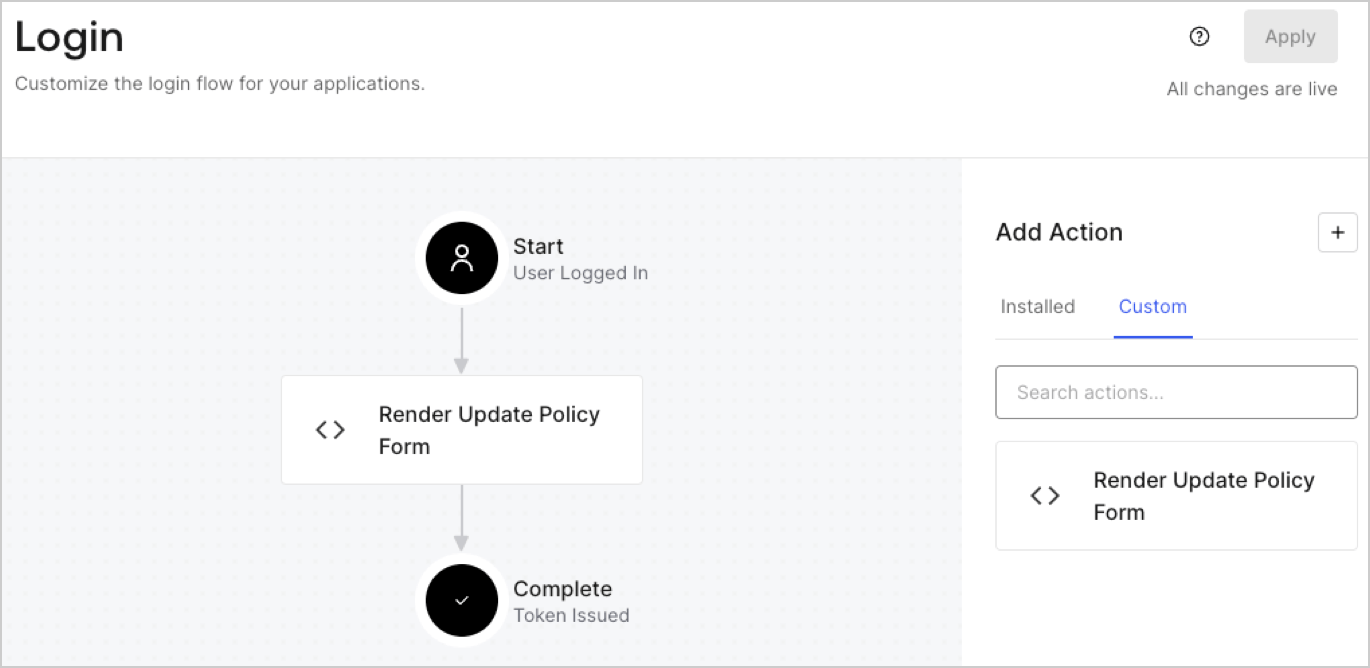
## Create a Post Login Action

Create a post-login Action to render your form by following these steps:

1. Navigate to **Auth0 Dashboard > Actions > Flows > Login.**
2. Select the **+** icon and Select **Build from scratch**:

   * **Name**: Enter `Render Update Policy Form`.
   * **Trigger**: Select `Login / Post Login`.
   * **Runtime**: Select the recommended version.
3. Select **Create**.

To configure the post-login Action:

1. Delete the existing code from the Code editor.
2. Paste the form render code into the Code editor.
3. Edit the code to define the conditional logic that will render the form.

   ```javascript lines theme={null}
   /**
   * @param {Event} event - Details about the user and the context in which they are logging in.
   * @param {PostLoginAPI} api - Interface whose methods can be used to change the behavior of the login.
   */
   exports.onExecutePostLogin = async (event, api) => {
     const FORM_ID = 'REPLACE_WITH_YOUR_FORM_ID';

     if (event.user.app_metadata.privacy_policies !== true) {
       api.prompt.render(FORM_ID);
     }
   }

   exports.onContinuePostLogin = async (event, api) => { }
   ```

   <Callout icon="file-lines" color="#0EA5E9" iconType="regular">
     The example code above will render the form when a user is missing the app metadata `privacy_policies` property.
   </Callout>
4. Select **Deploy.**
5. Drag and Drop the **Render Update Policy Form** Action to the **Login** flow.
   <Frame>
     <img src="https://mintcdn.com/docs-staging-chore-rate-limits-autoupdate-0/4Z4qucG-CpJiO_6z/docs/images/cdy7uua7fh8z/5TOwDgevZsBqd7yZynUYWU/41ca909dc3007aed4f40ff794a05efa5/postlogin.png?fit=max&auto=format&n=4Z4qucG-CpJiO_6z&q=85&s=d0c63dac4632a501f064a4b4a2840b79" alt="Dashboard > Forms > Use Case > Render update policy form login action" data-og-width="1370" width="1370" data-og-height="668" height="668" data-path="docs/images/cdy7uua7fh8z/5TOwDgevZsBqd7yZynUYWU/41ca909dc3007aed4f40ff794a05efa5/postlogin.png" data-optimize="true" data-opv="3" srcset="https://mintcdn.com/docs-staging-chore-rate-limits-autoupdate-0/4Z4qucG-CpJiO_6z/docs/images/cdy7uua7fh8z/5TOwDgevZsBqd7yZynUYWU/41ca909dc3007aed4f40ff794a05efa5/postlogin.png?w=280&fit=max&auto=format&n=4Z4qucG-CpJiO_6z&q=85&s=a10d142594a67965f199123ef78bf829 280w, https://mintcdn.com/docs-staging-chore-rate-limits-autoupdate-0/4Z4qucG-CpJiO_6z/docs/images/cdy7uua7fh8z/5TOwDgevZsBqd7yZynUYWU/41ca909dc3007aed4f40ff794a05efa5/postlogin.png?w=560&fit=max&auto=format&n=4Z4qucG-CpJiO_6z&q=85&s=9185531728d5a918291c9089a780e33e 560w, https://mintcdn.com/docs-staging-chore-rate-limits-autoupdate-0/4Z4qucG-CpJiO_6z/docs/images/cdy7uua7fh8z/5TOwDgevZsBqd7yZynUYWU/41ca909dc3007aed4f40ff794a05efa5/postlogin.png?w=840&fit=max&auto=format&n=4Z4qucG-CpJiO_6z&q=85&s=5023fcd595892cccd5f3b70d2f5a5bfe 840w, https://mintcdn.com/docs-staging-chore-rate-limits-autoupdate-0/4Z4qucG-CpJiO_6z/docs/images/cdy7uua7fh8z/5TOwDgevZsBqd7yZynUYWU/41ca909dc3007aed4f40ff794a05efa5/postlogin.png?w=1100&fit=max&auto=format&n=4Z4qucG-CpJiO_6z&q=85&s=6c66e4fbdf388ef0330efcefa29b14bd 1100w, https://mintcdn.com/docs-staging-chore-rate-limits-autoupdate-0/4Z4qucG-CpJiO_6z/docs/images/cdy7uua7fh8z/5TOwDgevZsBqd7yZynUYWU/41ca909dc3007aed4f40ff794a05efa5/postlogin.png?w=1650&fit=max&auto=format&n=4Z4qucG-CpJiO_6z&q=85&s=f55226e0de82a89acf9aede35469875c 1650w, https://mintcdn.com/docs-staging-chore-rate-limits-autoupdate-0/4Z4qucG-CpJiO_6z/docs/images/cdy7uua7fh8z/5TOwDgevZsBqd7yZynUYWU/41ca909dc3007aed4f40ff794a05efa5/postlogin.png?w=2500&fit=max&auto=format&n=4Z4qucG-CpJiO_6z&q=85&s=2b7fd8fc103638ac5021439784736f63 2500w" />
   </Frame>
6. Select **Apply.**

### Test implementation

Test the implementation by following these steps:

1. Log in with an existing user whose app`_metadata` attribute `privacy_policies` does not have a value.
2. The post-login Action in the Login flow will render the form and prompt for acceptance.
3. Select **Auth0 Dashboard > User Management > Users,** locate the user and verify that the `app_metadata` attribute `privacy_policies` contains a `true` value and a timestamp.
